
Link your WPML site to PTC to sync glossaries and ensure consistent translations across your website and software or app.
Linking Your WPML Site and Importing the Glossary
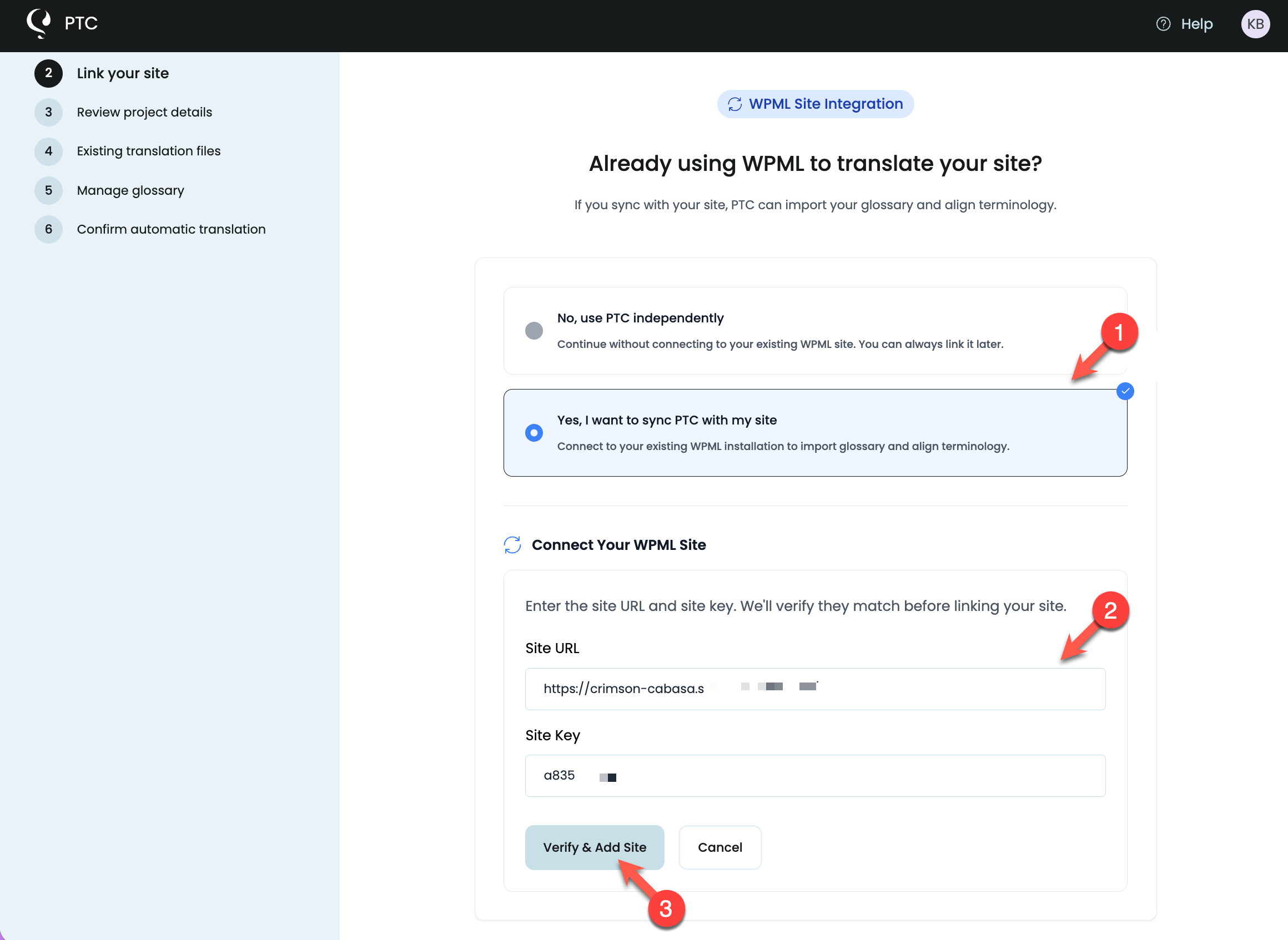
When you create a new project in PTC, the project setup lets you link your WPML website to your software translation project. To do this, you need:
- Your WPML site URL
- Your WPML site key
Enter both in the provided fields, then click the Verify & Add Site button.
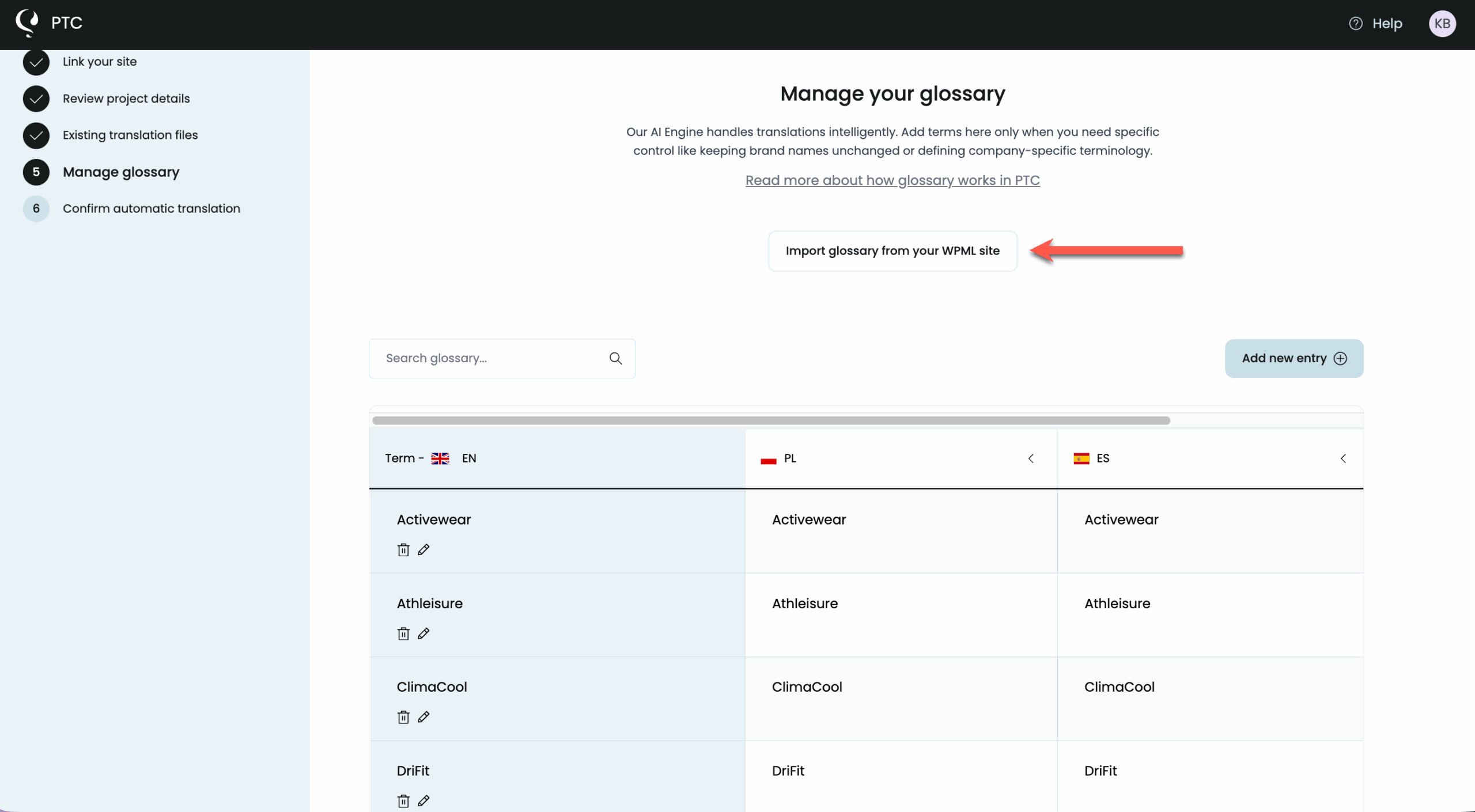
Continue through the project setup. In the Manage Glossary step, click the Import glossary from your WPML site button. PTC will import the glossary created for your source language—any glossaries you’ve created for target languages will not be imported.
Depending on the size of your glossary, it may take a few minutes for the sync to finish. You’ll see the imported terms appear in the table.
How Glossary Syncing Works
Once you link your WPML site and software translation project in PTC, glossary syncing happens automatically. By default, PTC runs the sync every 24 hours, pulling new terms from your WPML glossary into PTC and vice versa.
You can also trigger manual syncs to update your glossaries immediately after making changes:
- From the PTC dashboard, go to Settings → Linked Sites
- Click the spinning arrows icon to start the sync
- The sync will complete within a few minutes, and new terms will appear in your glossary
Ready to Sync Your Glossaries?
Start your free trial to link your WPML site and start syncing your glossaries.


