

Modern translation gets the words right. What it cannot tell you is whether those words work once they are rendered in your product, and that is where localization quality is won or lost.
A translation can be perfectly accurate and still be wrong in context: it reads awkwardly next to a label, the tone is off inside a button, or it is inconsistent with a term you used two screens earlier. The same string can also hit code-level trouble: it overflows its container, breaks an RTL layout, or never appears because it is missing from your resource file.
None of this shows up in a .po, .json, or strings.xml file. It shows up once the interface is rendered, sometimes in a slow QA pass, but more often when a client finds it for you.
AI Visual QA catches all of it, with almost no effort from you.
How AI Visual QA Reviews Your Translated UI
AI Visual QA reviews screenshots of your translated interface, not just the strings, and sorts what it finds into two kinds of issue:

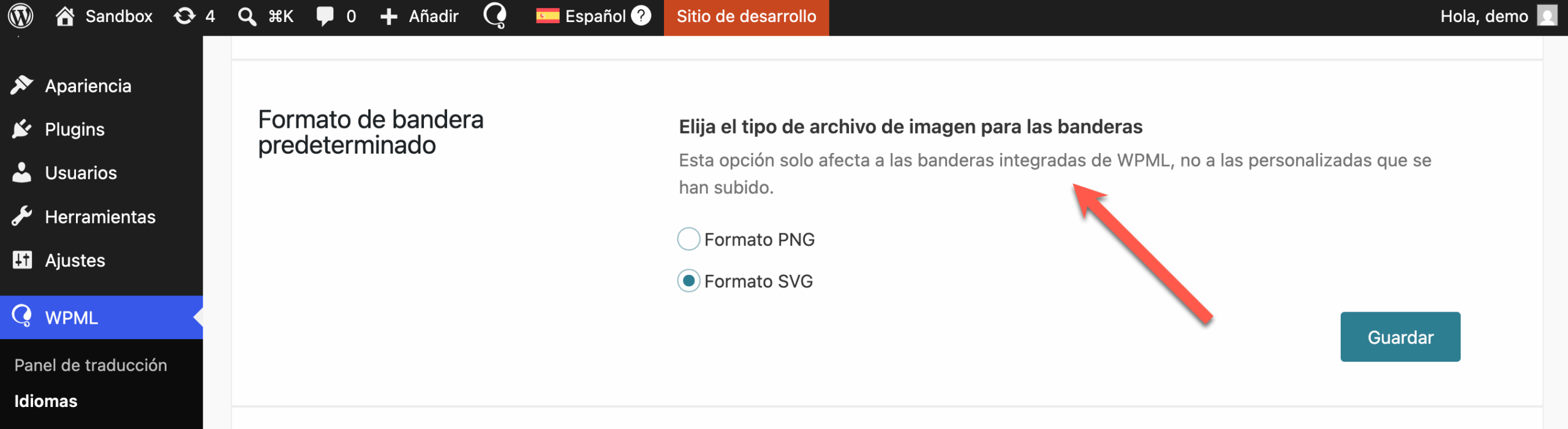
Translation issues
These are fixed automatically. This covers awkward phrasing, the wrong tone, and wording that reads wrong in context.

Code-level issues
Detected issues come with a ready-to-use prompt that tells your AI coding assistant exactly how to fix the problem at the source. This covers truncated text, broken RTL layouts, and missing strings.
For web apps, the PTC Visual QA browser extension does the work for you.
You walk through your app once and mark the screens you want reviewed, and it repeats that walkthrough for every language, so you never recapture the same screens ten times by hand. For any other type of app, you upload the screenshots yourself for now, though we are building the same automation for more platforms.
Either way, the result is the same. You no longer need a dedicated QA pass or a language-specific reviewer for every release.
What AI Visual QA Found When We Ran It on WPML
WPML is the most widely used multilingual plugin for WordPress, running on over 1.5 million sites. It is translated into 19 languages, including European languages such as Spanish and Polish, RTL languages such as Arabic and Hebrew, and non-Latin scripts such as Chinese, Japanese, and Korean.
For years, that meant a manual review after every translation cycle. Professional, top-of-the-line human translators worked through the interface screen by screen and language by language. The work took days, sometimes weeks. Even then, issues still slipped through. They always do.
We reviewed four plugins with AI Visual QA: WPML core, String Translation, Media Translation, and WPML for WooCommerce (WCML). The whole pass took a couple of hours. Here is a sample of what it caught.

Wording that reads wrong in context (Spanish)
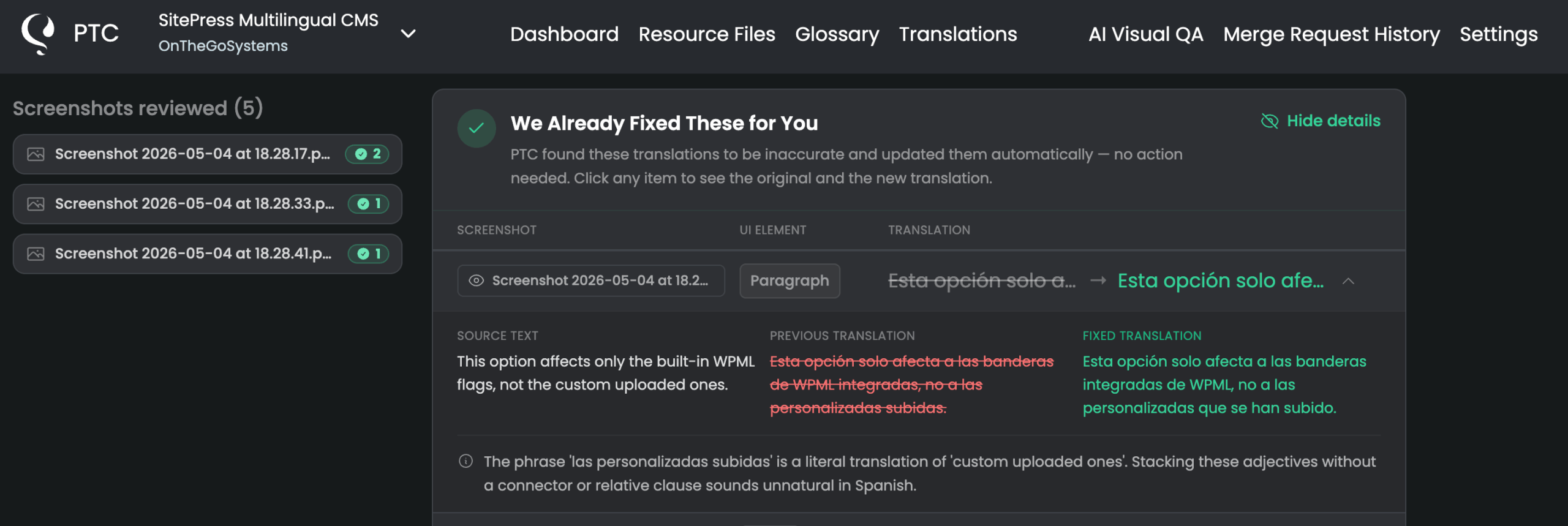
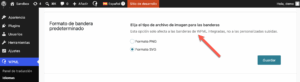
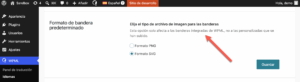
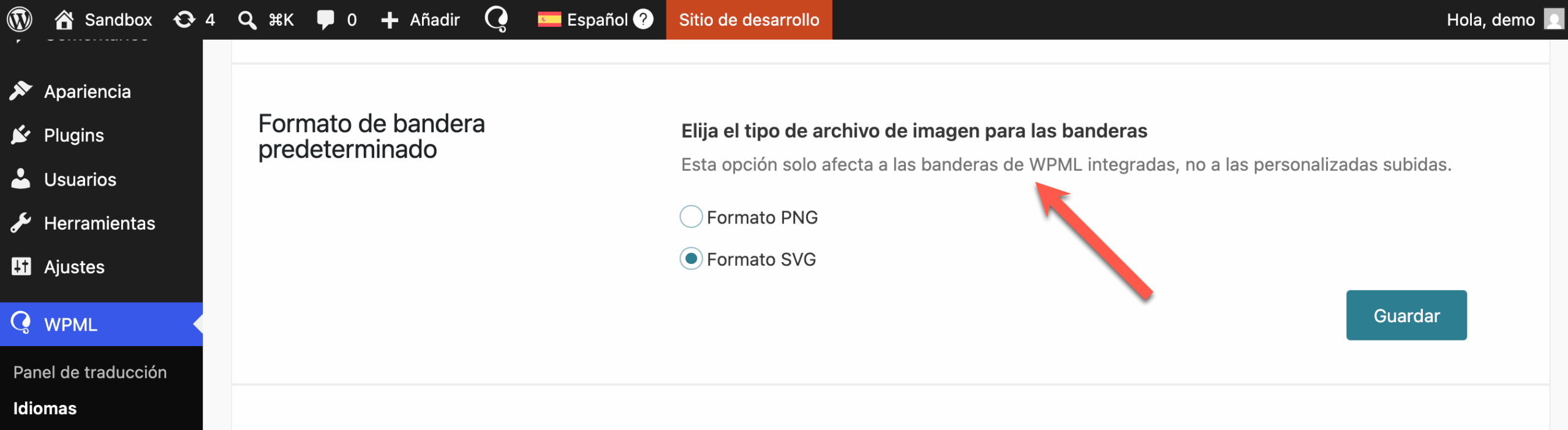
On the WPML Languages page, a Spanish sentence was accurate but read awkwardly in context. AI Visual QA caught it once it saw the translation rendered and fixed the wording automatically.
We have PTC connected to our repository, so it keeps corrected translations in sync there. That sync is an optional setup, not a requirement.

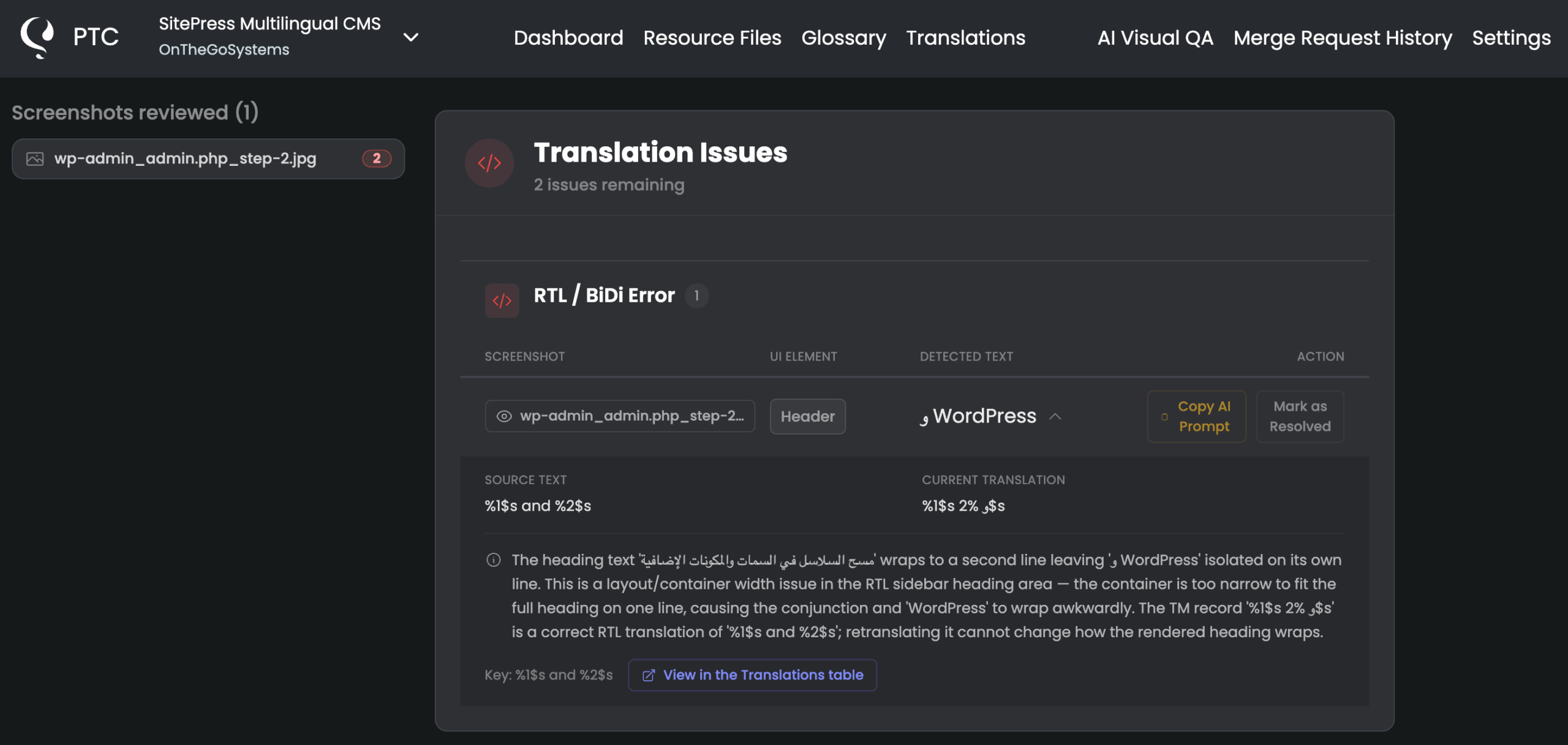
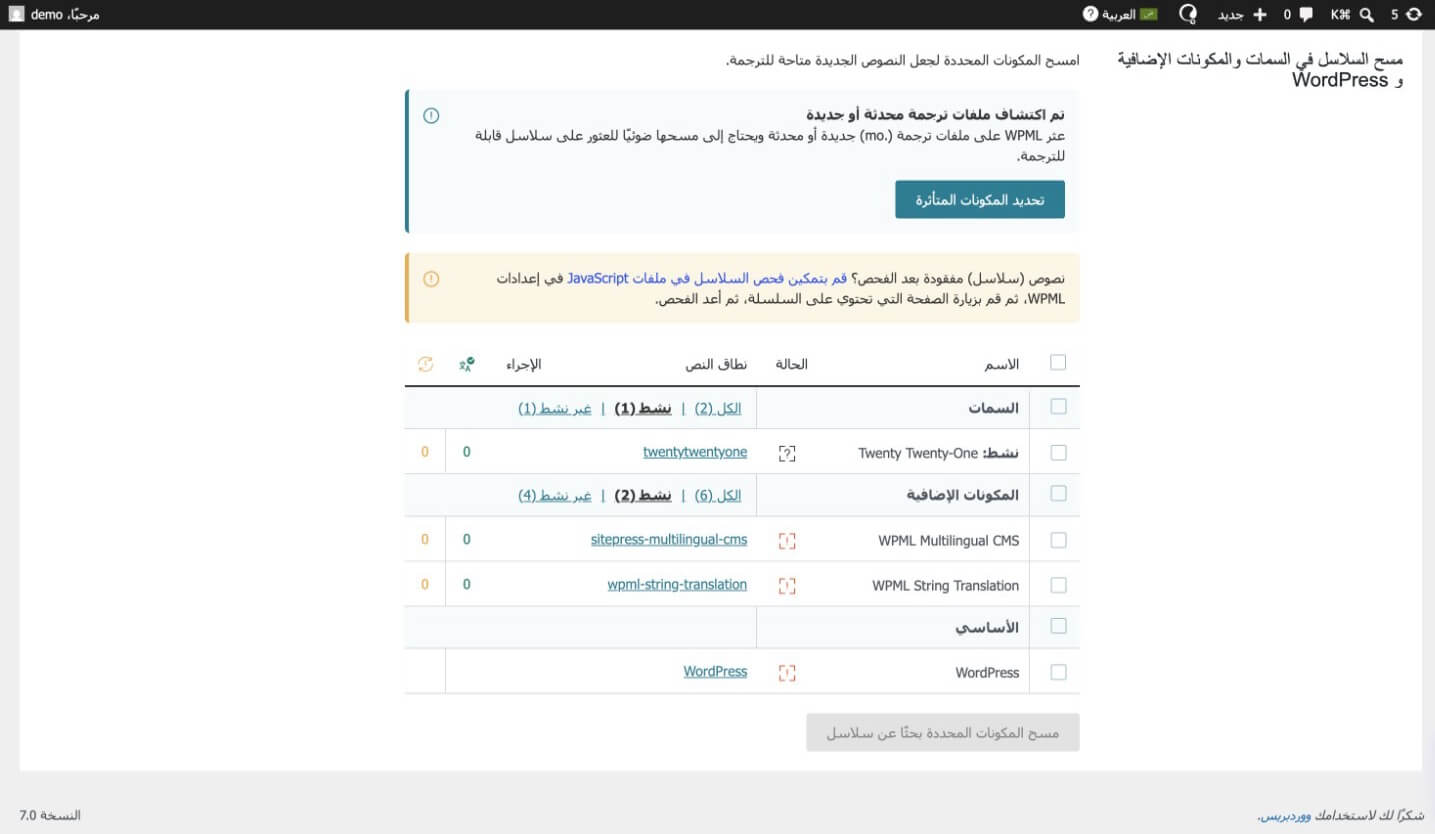
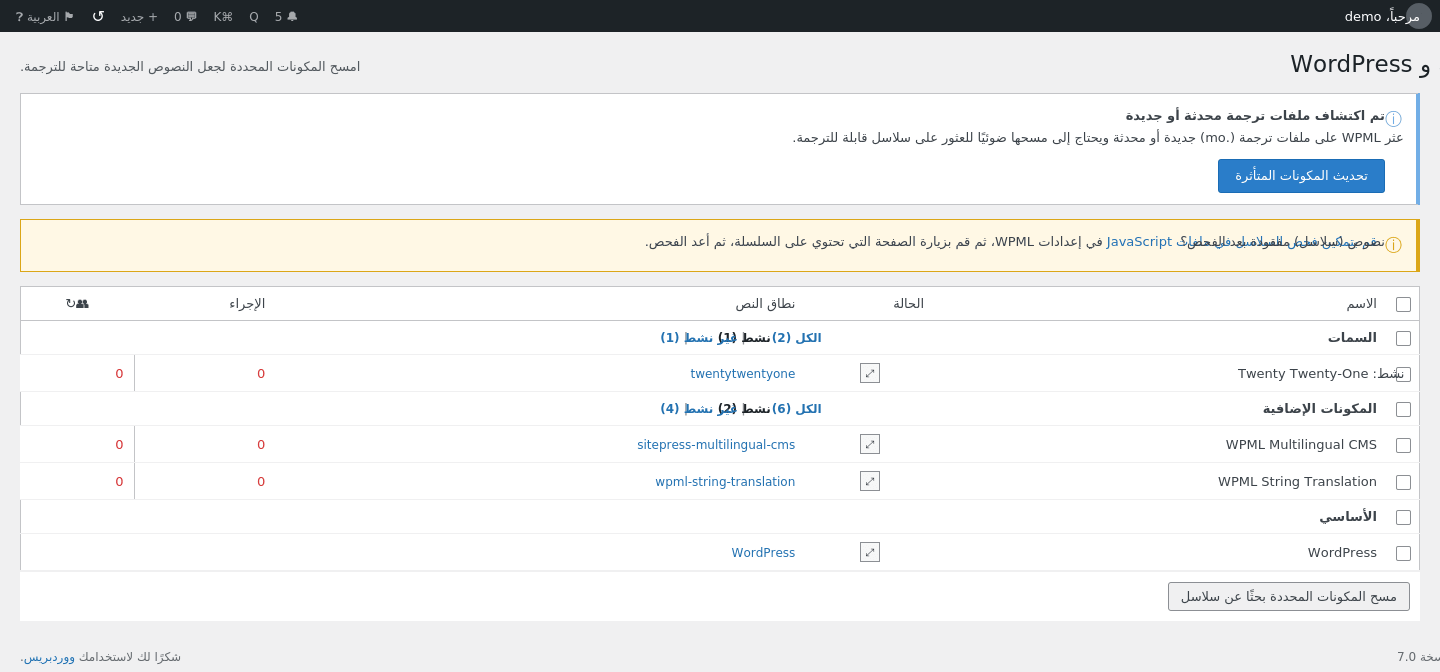
Layout that broke in RTL (Arabic and Hebrew)
For Arabic and Hebrew, AI Visual QA flagged layout errors that only appear right-to-left. These are among the hardest issues to catch by hand, because you have to know what a correct RTL layout looks like.
Each one came with its own fix prompt, which we pasted into an AI coding assistant that located the element and corrected the layout at the source.

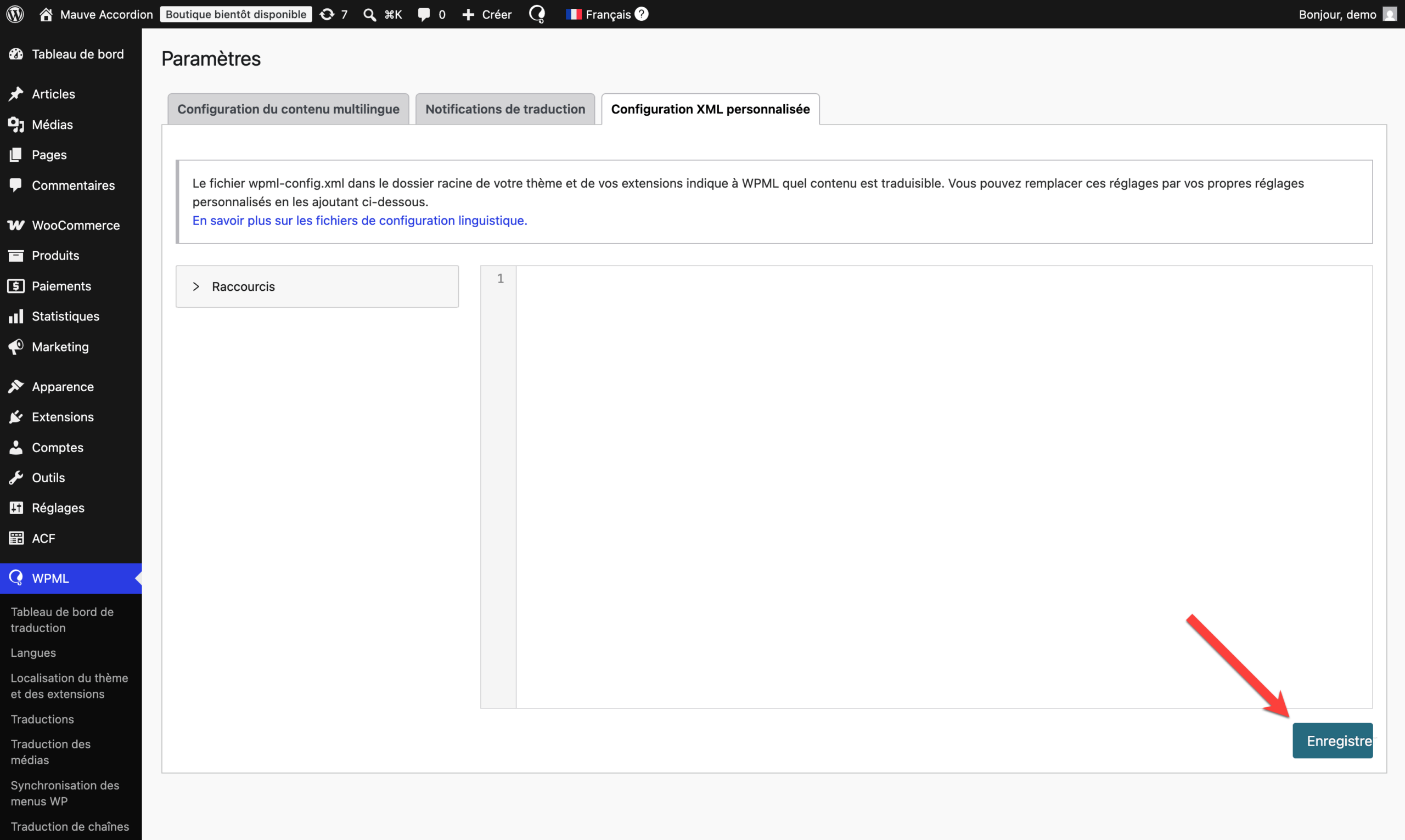
A button clipped in French
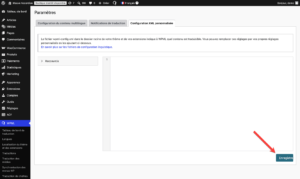
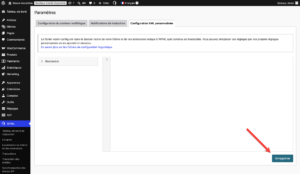
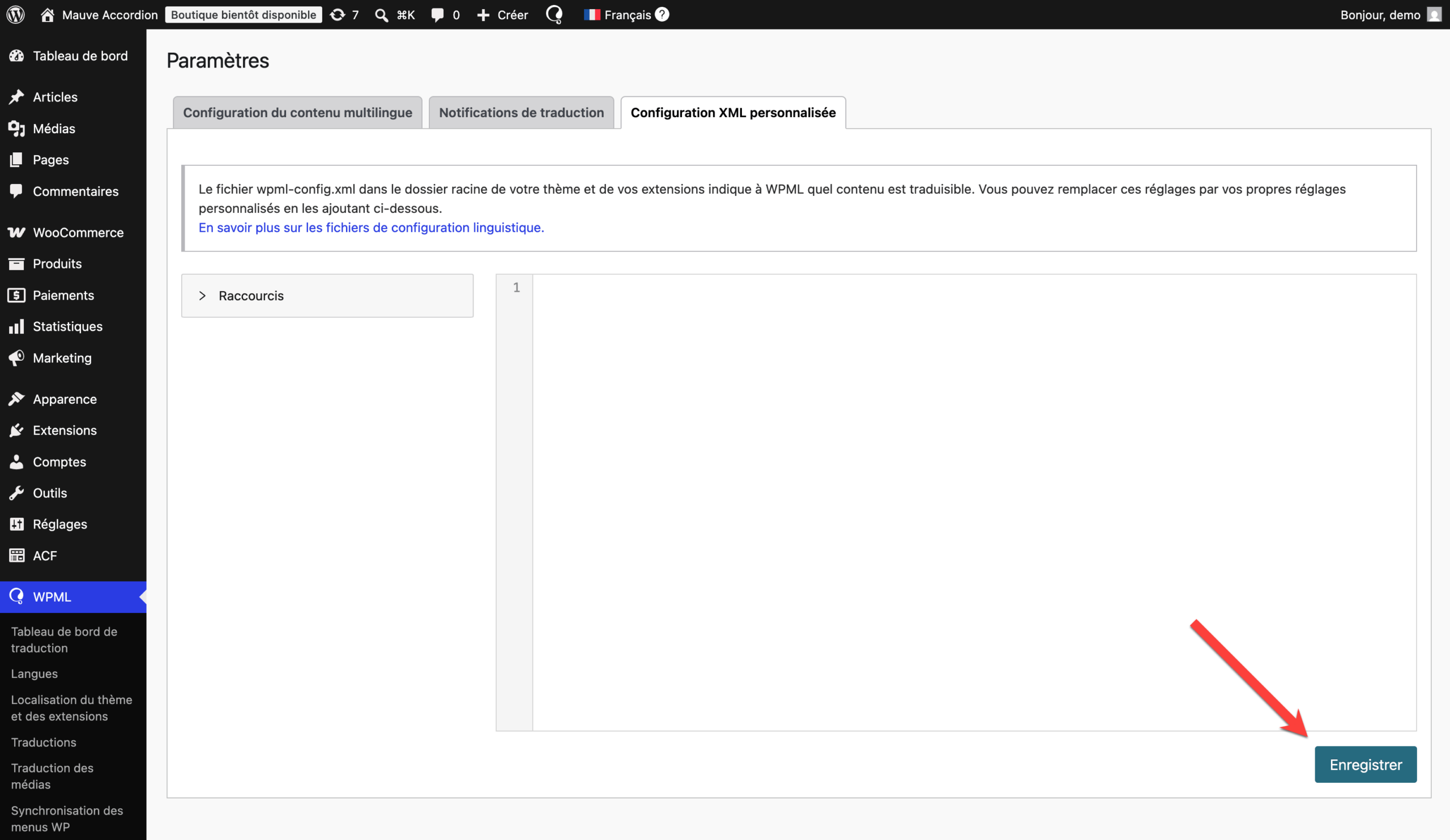
On the Custom XML Configuration screen, the French word “Enregistrer” was clipped to “Enregistre”. The translation was correct, but the button was too narrow to hold it.
AI Visual QA flagged the issue and gave us a prompt that described exactly what to change and where. One click copied it, and an AI coding assistant widened the button at the source. The text was right all along. Only the layout had to change.

Strings that were never translated (German)
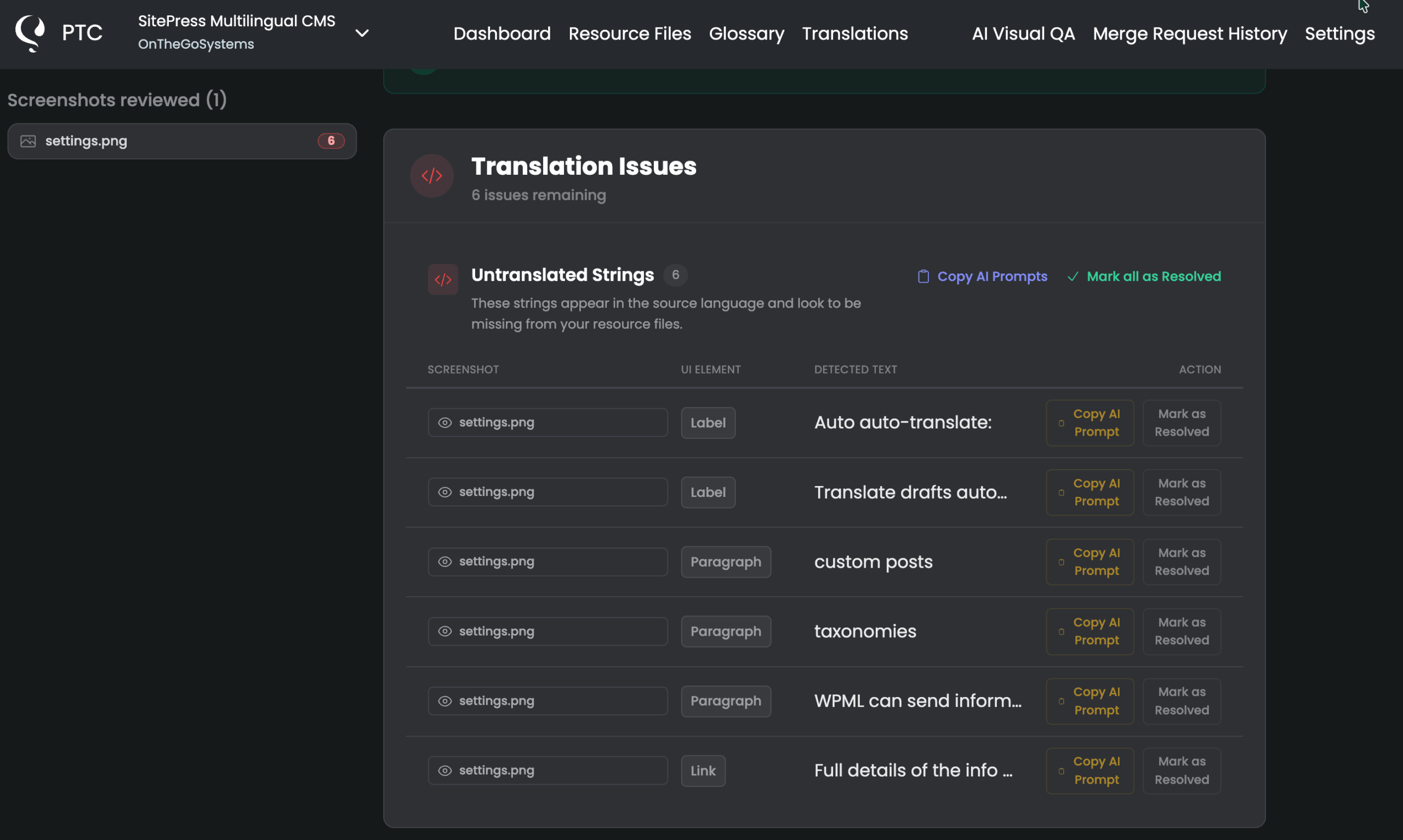
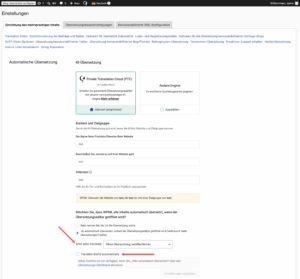
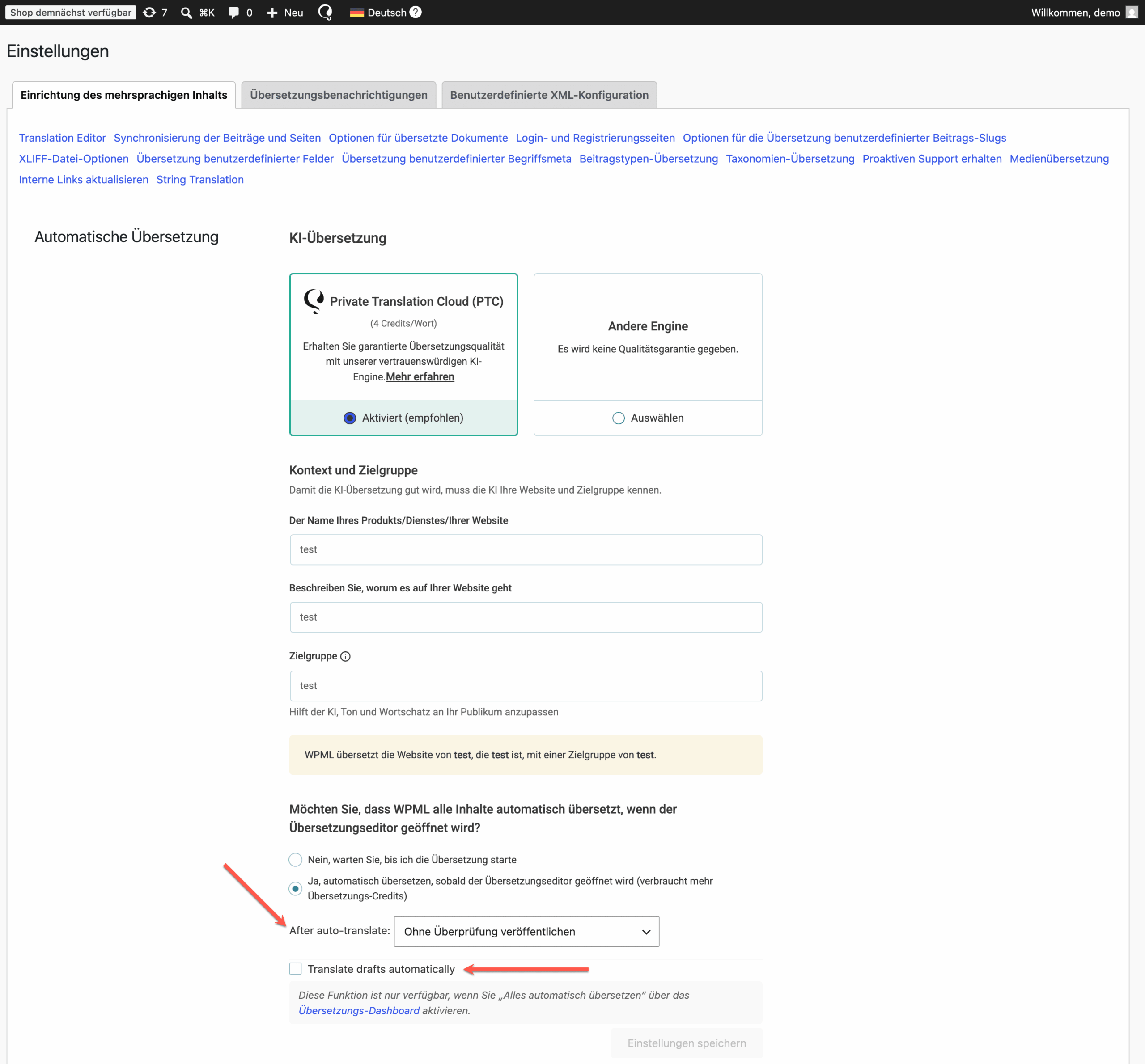
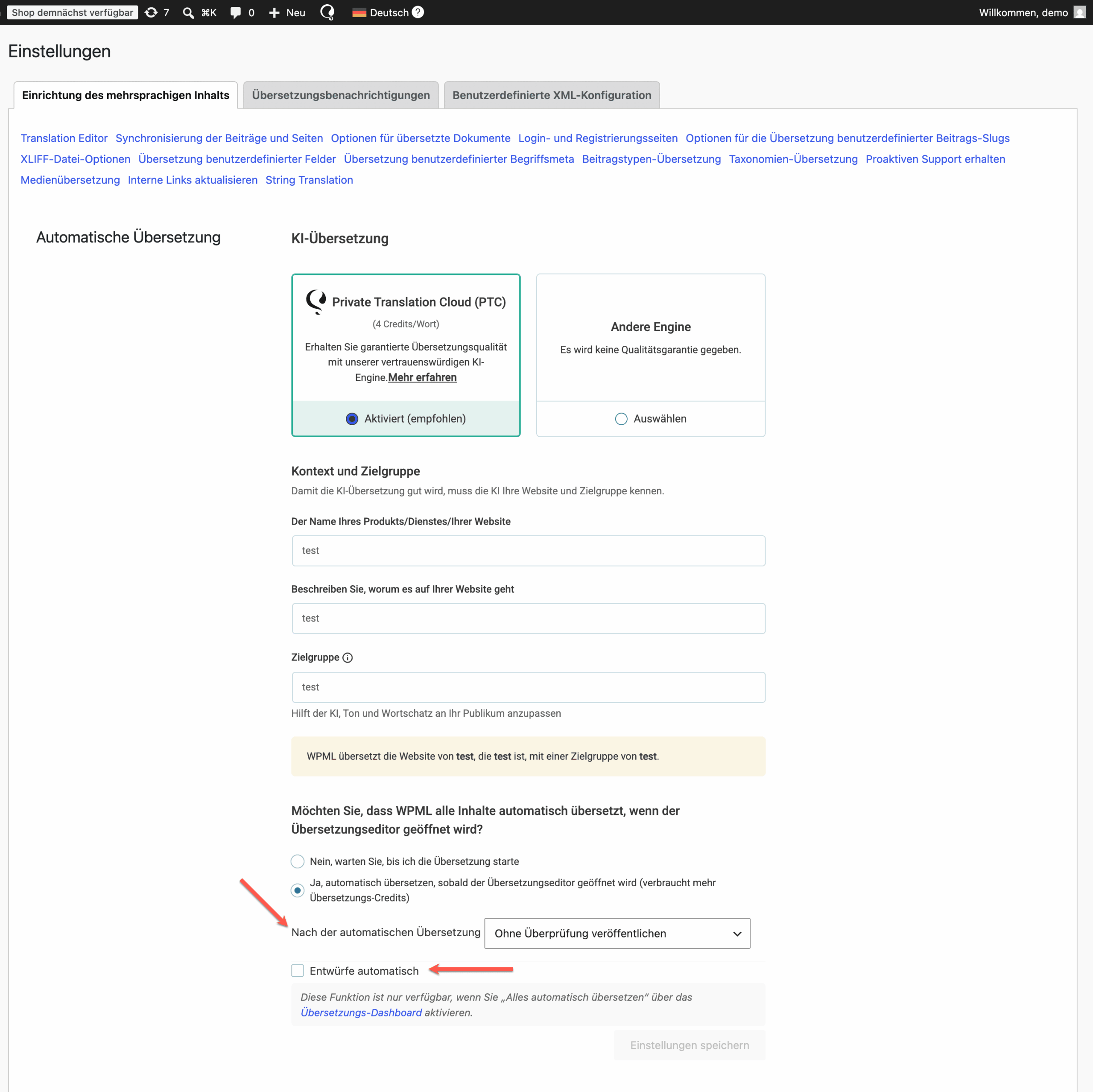
On the German Settings page, some strings were still in English. AI Visual QA flagged them, and because it checks the rendered UI against the strings PTC actually holds, it could tell these were not a translation gap. The strings were missing from the resource file entirely, which is why they were never translated.
It generated a prompt to add them at the source, and an AI coding assistant added the missing strings so they could be translated and displayed.

What One AI Visual QA Pass Delivers Before Release
Across all four plugins, we found, fixed, and verified every issue before a single client saw it, without a specialist or a dedicated review cycle. One pass took a couple of hours, and it left our translations ready to ship in 19 languages.
For a product that has to look right in every language, that is the difference between catching issues yourself and hearing about them from a customer.

How to Start Using AI Visual QA
AI Visual QA is available to all active Pro plan subscribers at no extra cost.
Sign in to PTC to review a project you are already translating.
Sign up for a free trial if you are new. Translate up to 20,000 words into 2 languages for free, then move to the Pro plan to start your visual review.


