
Learn all the steps to internationalize your WordPress theme or plugin so it’s ready to translate into any language.
This guide is for developers writing the code. If you already have a POT or PO file and just need to translate it, you can do that in 3 simple steps with PTC.
What Is WordPress Internationalization?
Internationalization (i18n) is the process of preparing your code so it can be translated. It’s not the process of translation itself. Localization (l10n) is the step that follows, where strings are actually translated into specific languages.
For WordPress themes and plugins, i18n means:
- Wrapping all user-facing strings in gettext functions so WordPress can swap them out
- Defining a text domain that ties your translations to your project
- Generating a POT file that translators (or PTC) can work from
Once that’s done, you have everything you need to produce translated PO, MO, and JSON files for any language.
Preparing Your WordPress Theme or Plugin for Translation
Before you can translate anything, you need to set up your code correctly. This means defining a text domain, wrapping all user-facing strings in gettext functions, and generating a POT file.
None of this is complicated, but the details matter. A mismatched text domain or an unwrapped string means that text will never appear in your translated output.
Step 1
Define Your Text Domain and Domain Path
Every theme or plugin needs a text domain. It’s a unique identifier that tells WordPress which translation files belong to your project, and it should match your plugin or theme slug exactly.
Declare it in your plugin’s main file header:
/**
 * Plugin Name: My Plugin
 * Text Domain: my-plugin
 * Domain Path: /languages
 */
Or in your theme’s style.css:
/*
Theme Name: My Theme
Text Domain: my-theme
Domain Path: /languages
*/
The domain path tells WordPress where your translation files live relative to the plugin or theme root. The /languages directory is the standard.
Step 2
Wrap Your PHP Strings in Gettext Functions
Any string you want to make translatable needs to be wrapped in one of WordPress’s gettext functions. At runtime, these functions look up the correct translation and fall back to the original string if no translation is found.
Basic Strings
Use __() when you need to return a string. For HTML output (which is almost always the case), use the escaped variants:
// Return a translated string
$label = __( 'Settings', 'my-plugin' );

// Echo a translated string, escaped for HTML
echo esc_html__( 'Settings saved.', 'my-plugin' );WordPress coding standards recommend echo esc_html__() over _e() because it makes output escaping explicit. It’s a good habit to apply consistently.
Strings with Variables
If you concatenate a variable directly into a string, translators only see the fragments, not the full sentence. That makes it impossible to translate correctly, especially in languages where word order is different. Instead, use printf() or sprintf() with a placeholder, and add a translator comment so they know what %s represents:
printf(
    /* translators: %s: the user's display name */
    esc_html__( 'Welcome back, %s.', 'my-plugin' ),
    esc_html( $display_name )
);Plural Forms
In English, plurals are simple: one comment, two comments. Other languages aren’t that straightforward. Some have multiple plural forms depending on the number. Use _n() to handle this correctly no matter which language your plugin is translated into:
printf(
    esc_html( _n(
        '%s comment',
        '%s comments',
        $count,
        'my-plugin'
    ) ),
    number_format_i18n( $count )
);Strings That Need Context
Some words mean different things depending on where they appear. Use _x() to give translators the context they need to get the translation right:
// "Export" as a noun (the file) vs. a verb (the action)
echo esc_html_x( 'Export', 'button label', 'my-plugin' );Step 3
Internationalize Your JavaScript Strings
WordPress provides the wp-i18n package so you can use the same gettext functions in JavaScript that you use in PHP. When registering your script, declare wp-i18n as a dependency:
wp_register_script(
    'my-plugin-script',
    plugins_url( 'js/app.js', __FILE__ ),
    array( 'wp-i18n' ),
    '1.0.0',
    true
);Then in your JavaScript file:
const { __, _n, sprintf } = wp.i18n;

const message = __( 'Settings saved.', 'my-plugin' );If you’re using a bundler like Webpack, use @wordpress/babel-plugin-makepot to extract translatable strings from your bundle as part of your build process.
Step 4
Generate Your POT File
Once you wrap your strings, you need to generate a POT (Portable Object Template) file. This is the source file that PTC (or any translator) works from. It contains all your translatable strings but no translations yet.
Run this command from your plugin or theme’s root directory:
wp i18n make-pot . languages/my-plugin.potWP-CLI scans your PHP, JavaScript, and block.json files for gettext calls and compiles them into a single POT file. If you’re using Composer, you can add this as a Composer script so the command stays consistent across your team and doesn’t require a global WP-CLI install.
The full wp i18n suite includes everything else you’ll need later in the workflow:
| Command | What it does |
|---|---|
wp i18n make-pot |
Generate a POT file from source |
wp i18n update-po |
Sync existing PO files when your POT changes |
wp i18n make-mo |
Compile PO files into binary MO files |
wp i18n make-json |
Extract JS strings from PO into JSON files |
wp i18n make-php |
Generate l10n.php files (WordPress 6.5+) |
Translating POT Files with PTC
PTC is a translation platform built with WordPress developers in mind. You start with a POT file and get back production-ready translation files with no manual conversion on your end.
If you haven’t used PTC before, you can sign up for a free 30-day trial. Your first project includes up to 20,000 words across two languages, so you can translate a real plugin or theme before committing to anything.
1
Setting Up Your First Translation Project
To get started, upload your POT file and choose which output formats you need. PTC can return any combination of:
- .
pofiles for each target language .mofiles, compiled and ready to ship.jsonfiles for your JavaScript strings.l10n.phpfiles for faster loading on WordPress 6.5 and later
The .l10n.php format is worth enabling for new projects. WordPress loads it automatically in place of the MO file when both are present, and it’s faster and lighter on memory.
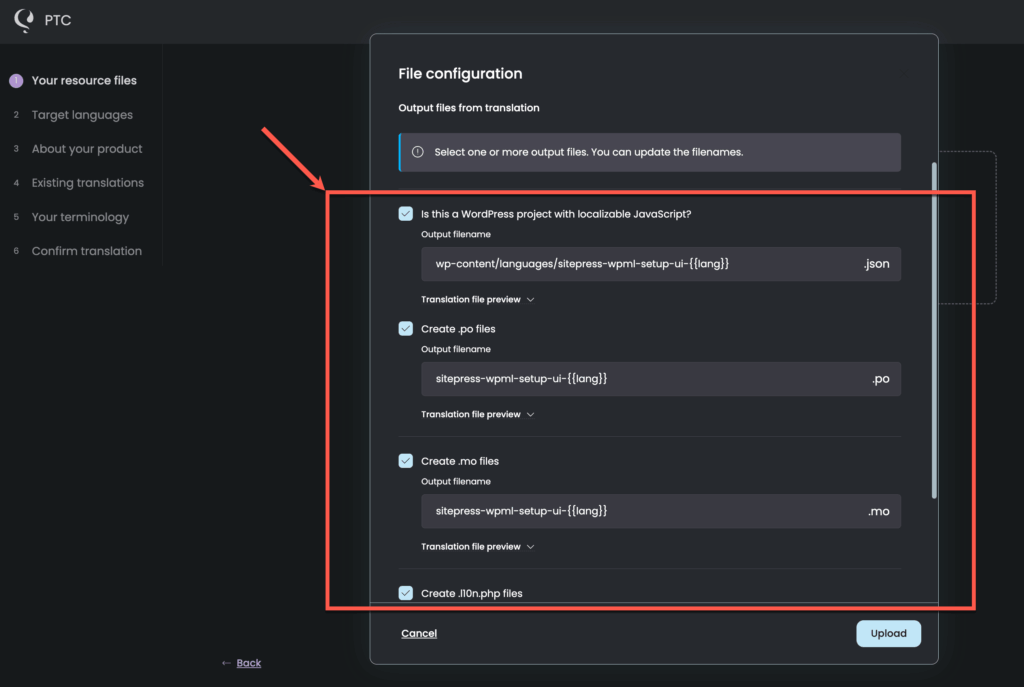
The setup wizard also asks you to describe your theme or plugin so PTC can generate translations with the right tone and context for your specific product. You can also add brand-specific terms to the glossary at this stage, which ensures names, features, and any terminology are translated consistently across all languages.
See the getting started guide for a full walkthrough of these steps.
2
Moving to Continuous Localization
Once your first files are translated, you can connect PTC to your GitHub, GitLab, or Bitbucket repository. Or, you can integrate localization into your CI/CD pipeline with the API.
From that point, you don’t need to upload files manually. When your POT file changes, PTC detects the new and updated strings and returns the translated files: via merge request for Git, or directly through the API. Your translations stay in sync with your code across every release.
Loading Translations in WordPress
Once you have your translated files, you need to place them in the right location and tell WordPress where to find them.
Before you do either of those things, make sure your filenames are correct. WordPress looks for translation files using a specific naming pattern, and a filename that doesn’t match means the file simply won’t load.
Getting Your Filenames Right
Locale codes follow the language_COUNTRY format: de_DE for German (Germany), fr_FR for French (France), pt_BR for Portuguese (Brazil). You can find the full list of WordPress locale codes on translate.wordpress.org.
The expected filename depends on where you place the file.
Inside your plugin’s /languages/ folder:
{text-domain}-{locale}.mo
my-plugin-de_DE.moInside your theme’s /languages/ folder:
{locale}.mo
de_DE.mo
In the global WordPress language directory (/wp-content/languages/):
{text-domain}-{locale}.mo
my-plugin-de_DE.moNote that themes use a shorter naming convention when files are bundled inside the theme itself. If you’re placing files in the global language directory, both plugins and themes use the {text-domain}-{locale} pattern.
Loading Translations For Plugins (PHP)
After your translation files are in place, you need to register them with WordPress so it knows which files belong to your plugin and where to find them. Use load_plugin_textdomain() hooked to init. Don’t use plugins_loaded. It triggers a deprecation warning in current WordPress versions.
add_action( 'init', function () {
    load_plugin_textdomain(
        'my-plugin',
        false,
        dirname( plugin_basename( __FILE__ ) ) . '/languages/'
    );
} );Loading Translations For Themes (PHP)
For themes, use load_theme_textdomain() hooked to after_setup_theme. This hook fires during theme initialization, which is the right point for WordPress to load your translation files.
add_action( 'init', function () {
    wp_set_script_translations(
        'my-plugin-script',
        'my-plugin',
        plugin_dir_path( __FILE__ ) . 'languages'
    );
} );
Translating Your README and WordPress.org Listing
Your readme.txt isn’t a resource file, so WP-CLI won’t pick it up when generating a POT file. To translate it, use PTC’s Paste to Translate feature: paste the content, choose your target languages, and download the result.
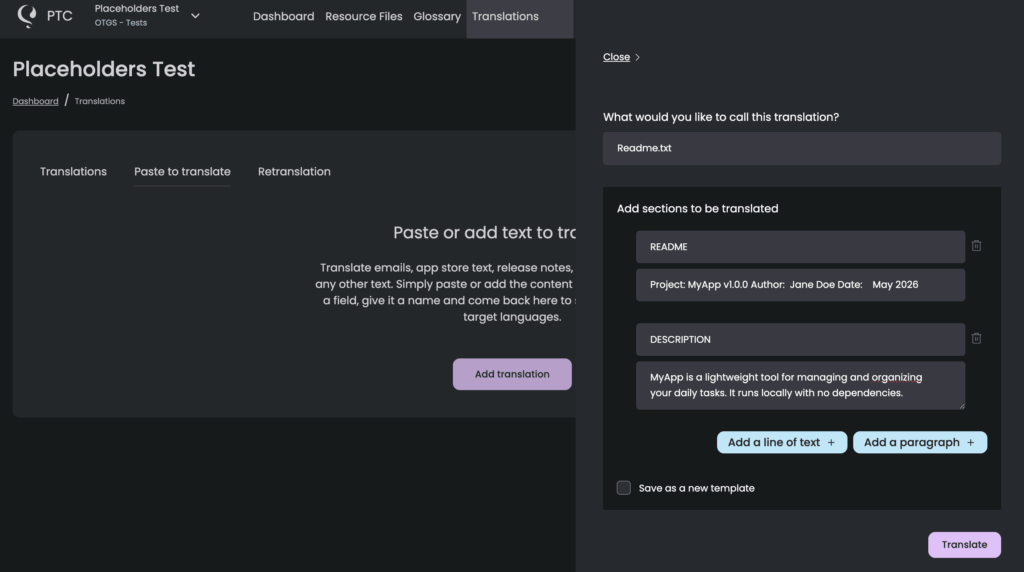
If your plugin or theme is listed on WordPress.org, the translated description appears on the plugin’s Details tab in the user’s language. To get your translations live there, follow the WordPress.org import process.
Frequently Asked Questions
What’s the difference between POT, PO, MO, and l10n.php files?
They’re all part of the same translation pipeline, each serving a different purpose:
- A POT file (Portable Object Template) is the source file you generate from your code. It contains all your translatable strings in their original language but no translations. It’s the file you hand off to PTC.
- A PO file (Portable Object) is a copy of your POT file with translations added for a specific language. It’s human-readable, so translators can work with it directly.
- An MO file (Machine Object) is a compiled binary version of a PO file. WordPress uses this to load translations in PHP because it’s faster to read than the plain text PO format.
- JSON files serve the same purpose as MO files but for JavaScript strings. WordPress can’t use MO files for JavaScript, so your JS translations are extracted and stored separately in JSON format.
- An l10n.php file is a newer alternative to MO files, introduced in WordPress 6.5. It loads faster and uses less memory, and WordPress will use it automatically when one is available alongside the MO file.
Can I rely on the WordPress translation community instead of using a translation tool?
In most cases, no. Community translation on WordPress.org is volunteer-driven. In practice, this means that only a small number of widely-used plugins have complete translations into major European languages. Most plugins have partial translations, and for less common locales, many have none at all.
If you want your users to have a fully translated experience from day one, waiting for the community isn’t a realistic strategy. Translations can take months or years to appear, if they appear at all. Using a tool like PTC means you ship complete translations alongside your source language, on your own schedule, without depending on volunteers.
An analysis of over 60,000 WordPress plugins and themes backs this up: community translation covers under 5% of translation needs across 40 languages.
If I use PTC, do I need Poedit?
No. Everything in this guide works with WP-CLI and PTC. WP-CLI generates your POT file and can compile MO and JSON files when needed. PTC handles the translation and returns all the file formats WordPress needs. Poedit is a useful desktop editor if you prefer to translate manually, but it’s not part of this workflow.
Do I need to do anything different for my theme/plugin to support RTL languages?
The translation workflow is the same. Right-to-left (RTL) languages use the same POT/PO/MO pipeline as any other language. The extra step is making sure your theme supports RTL styles. WordPress automatically loads an rtl.css file if one exists in your theme directory, and you can use the is_rtl() function to conditionally apply RTL-specific styles or scripts.
How do I make sure dates and numbers display correctly for each locale?
If your plugin or theme displays dates or numbers, use WordPress’s built-in formatting functions rather than PHP’s native ones. date_i18n() formats dates according to the active locale, and number_format_i18n() handles locale-aware number formatting. These aren’t part of the translation file workflow, but they matter for a fully localized experience.
Why aren’t translations showing up in my theme or plugin?
The most common cause is a text domain mismatch. Your code, file names, and load_plugin_textdomain() call must all use exactly the same string. Community translations from WordPress.org can also silently override your bundled files. See the full troubleshooting guide for specific scenarios and fixes.

Ready to ship fully translated WordPress themes and plugins?
Sign up for a free 30-day trial and translate your first project into two languages — up to 20,000 words — completely free.

Translate themes and plugins with PTC

Get accurate translations in minutes

Upload single files, or automate via API or Git integration


