
PTC’s AI Visual QA inspects screenshots of your translated interface, finds localization problems, and fixes them. It catches mistakes that would normally only come up during manual QA or after a user reports them.
Every Translation Workflow Still Needs a QA Pass
Getting high-quality translations is no longer the hard part. The harder part is making sure those translations actually work inside your product:
- Do they fit the UI without getting cut off?
- Do they match the brand voice?
- Is the formatting correct for each locale?
- Are any strings missing or still in the source language?
That work takes time, requires people who can read the target languages, and is easy to get wrong. The more languages you support, the harder it gets.
PTC Visual QA removes that work entirely. Instead of your team going screen by screen through every target language, PTC reviews your translated UI visually and handles the problems it finds.
What the AI Translation Review Includes
PTC reviews your translated UI the same way a QA reviewer would, but in a fraction of the time. It:
- Flags text that overflows or gets cut off by the UI
- Identifies missing and untranslated strings
- Detects formatting errors in dates, numbers, and currencies
- Catches right-to-left layout issues
- Checks that wording matches your brand voice in context
- Finds hardcoded strings and missing translation keys your development team may have missed
How PTC Resolves Issues
PTC fixes translation issues automatically. The only time it asks for your approval is when you manually translated or imported the string.
For code-level issues such as hardcoded strings or RTL layout problems, it flags the source and gives you a ready-to-use prompt to pass to your coding assistant. To see both in practice, take a look at what a real review found in the WPML plugin.
Before and After: Real Fixes on a Real Product
WPML runs on over 1.5 million sites. The team uses PTC to translate it into 19 languages. We ran a Visual QA review on the plugin to show you exactly what PTC catches and how quickly you can act on it.
Example 1: Truncated Button Text (French)
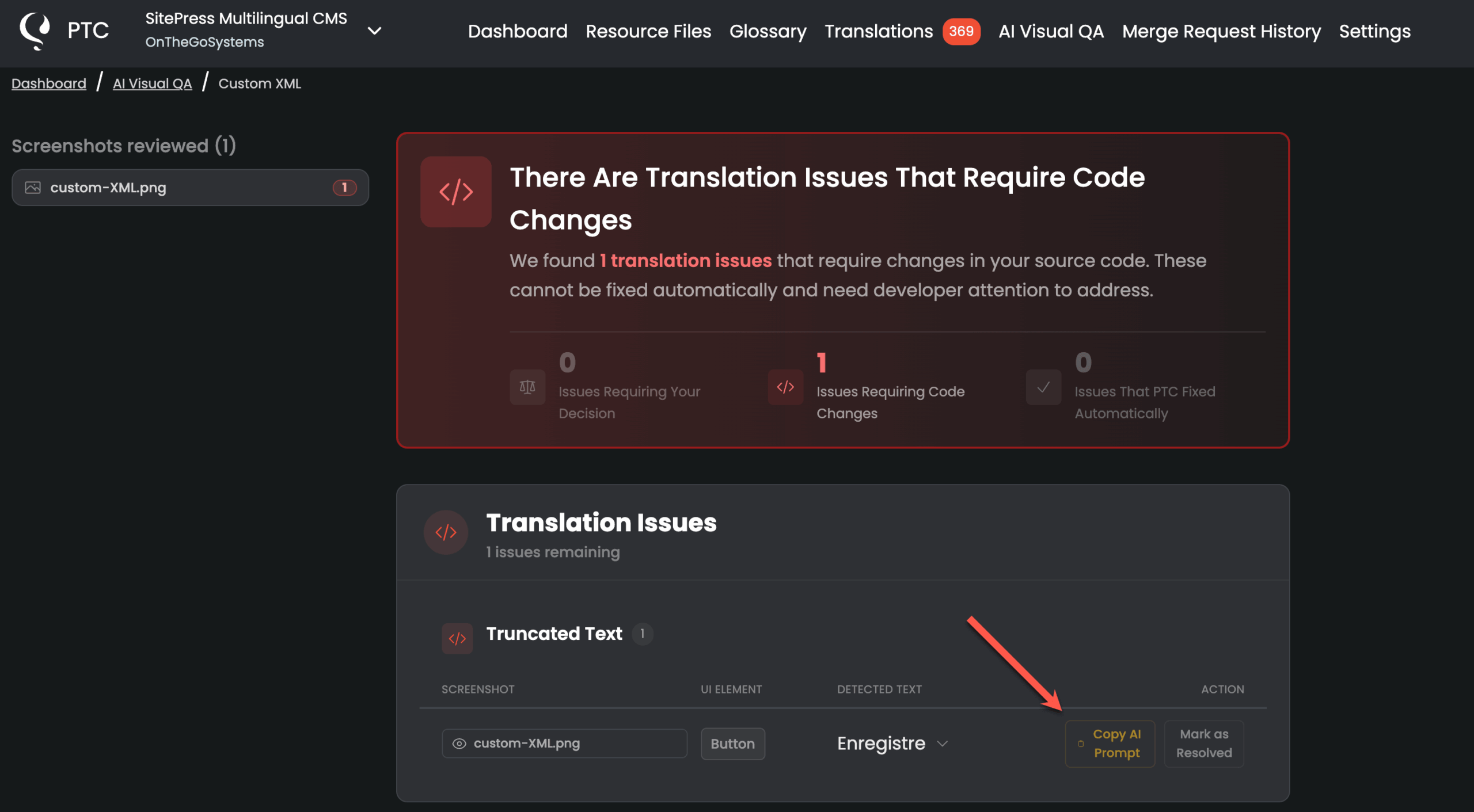
PTC flagged a cut-off Save button in the French version of the Custom XML Configuration screen in WPML → Settings. The button container was clipping the label “Enregistrer“, so French users only saw “Enregistre“.
PTC identified the string as a code-level issue. Along with the report, PTC generated a ready-to-use AI prompt describing the exact fix needed. You copy it directly from the review and paste it into your coding assistant to apply the change in your source code.
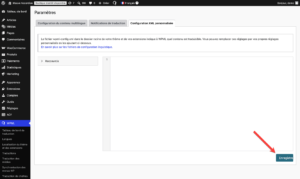
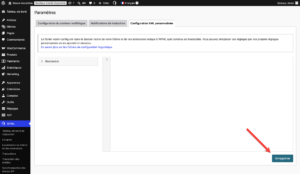
With the fix applied to the source code, the button renders its full label correctly. Here’s the difference:
Example 2: Unnatural Phrasing Fixed Automatically (Spanish)
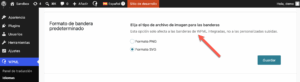
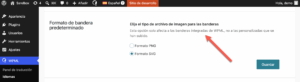
On the Spanish version of WPML’s Languages page, PTC caught a translation that was technically correct but phrased awkwardly. It applied a fix automatically.
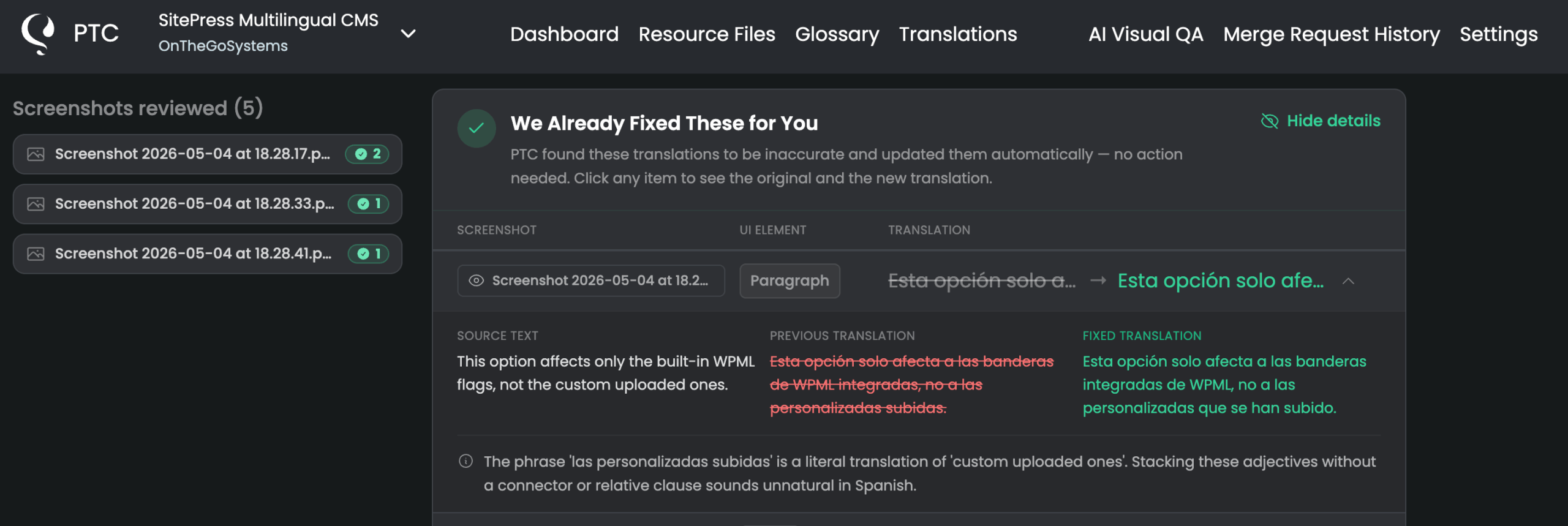
PTC generated a new merge request in the connected repository. After accepting it, the corrected string went live in the plugin with no manual input needed.
Get Started with PTC Visual QA
PTC Visual QA is available to all active Pay-As-You-Go subscribers at no extra cost. It does not count against your word balance.
To start using PTC Visual QA, sign in to PTC, open any project, and click the AI Visual QA tab. Upload screenshots of your app in any target language and PTC will review them in a few minutes.
If your app runs in a browser, install the PTC Visual QA browser extension and record a walkthrough of the important screens. PTC replays your app in every target language and submits the results to the AI Visual QA tab in PTC.
Frequently Asked Questions
How long does the Visual QA translation review take?
PTC usually completes the visual translation review within a few minutes, depending on the complexity of the screenshot and the number of uploaded screenshots.
What happens if I upload a screenshot from an older version of my app?
PTC may not be able to match the source text with your current translations. If that happens, it will flag the issue so you can review it manually.
Can PTC detect issues when multiple translation entries are merged into one line in my UI?
If two separate translation entries appear as a single unbroken line of text on screen, PTC may only link the issue to one of them. If the two entries use different font styling, such as bold or a different size, PTC can usually tell them apart and handle both correctly.
Why does PTC flag RTL issues that look like layout problems?
Because they affect how users see your translations. Even if the root cause is a layout issue that requires a code-level fix, PTC flags it so you don’t miss it.
Does an automatic fix apply to all languages or just the one in the screenshot?
Automatic fixes apply only to the language in the screenshot you submitted. No other target languages are affected.
What does the browser extension access, and how do I manage permissions?
Before the extension can record a session on a site, you need to authorize it for that site. This allows the extension to record clicks, inputs, and capture full-page screenshots. You can revoke access for any authorized site at any time by clicking the extension icon in your browser, going to the Permissions tab, and clicking Revoke next to the site you want to remove.
For details on what the extension processes, see the Privacy Policy for the Visual QA browser extension.
Is the PTC Visual QA included in my plan?
PTC Visual QA is available to all active Pay-As-You-Go subscribers at no extra cost. This includes both the browser extension and manual screenshot upload. It does not count against your word balance. PTC Visual QA is not available on the free trial.


